Guide · Start here
Getting started with RdPod
What you see after you sign in, where things are, and a short weekly routine that uses each screen once.
Your free Studio month#
Every new account starts on the Studio plan for 30 days, with no card. Studio is the full app, including the estimated sales columns. On day 31 the account moves to Free by itself; nothing is charged and nothing you saved is lost. Plans and limits compares the plans.
The rail#
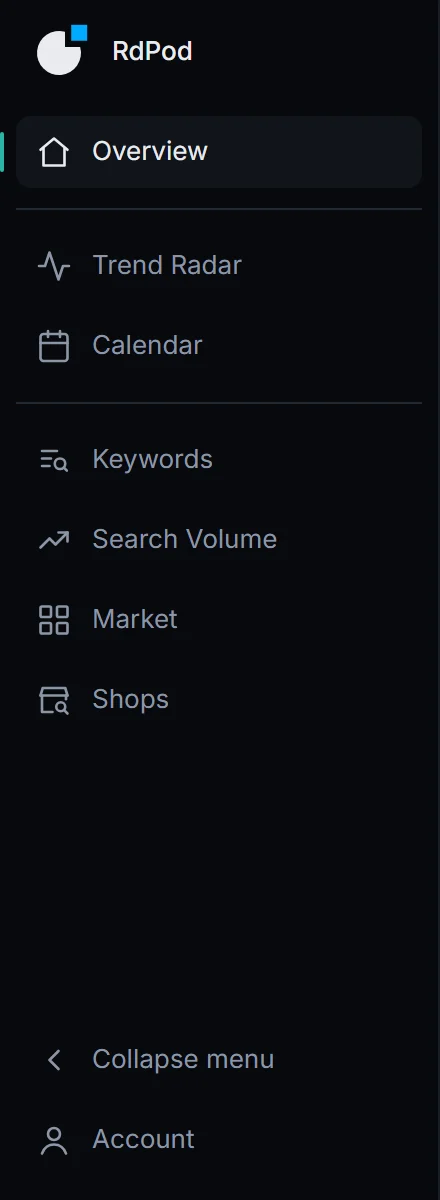
The rail on the left holds the screens, in the order you usually use them. The arrow at its foot shows or hides the names.
- Overview: what to post now, the next deadlines and new listings gaining views.
- Trend Radar and Calendar: rising keyword clusters, and the occasions with their dates.
- Keywords, Search Volume, Market and Shops: research a phrase, its searches, its listings and the shops that sell it.
- Account, at the bottom: your profile, plan and the Chrome extension key.
The top bar#

On the left the top bar shows where you are, with a Back button on detail pages. On the right:
- Guide: opens the guide page for the screen you are on, or the guide home when that screen has no page yet.
- The search box: the same as Ctrl K.
- The bell (notifications), the language (English, Vietnamese, German, French), the light or dark theme and your account menu.
Jump anywhere with Ctrl K#
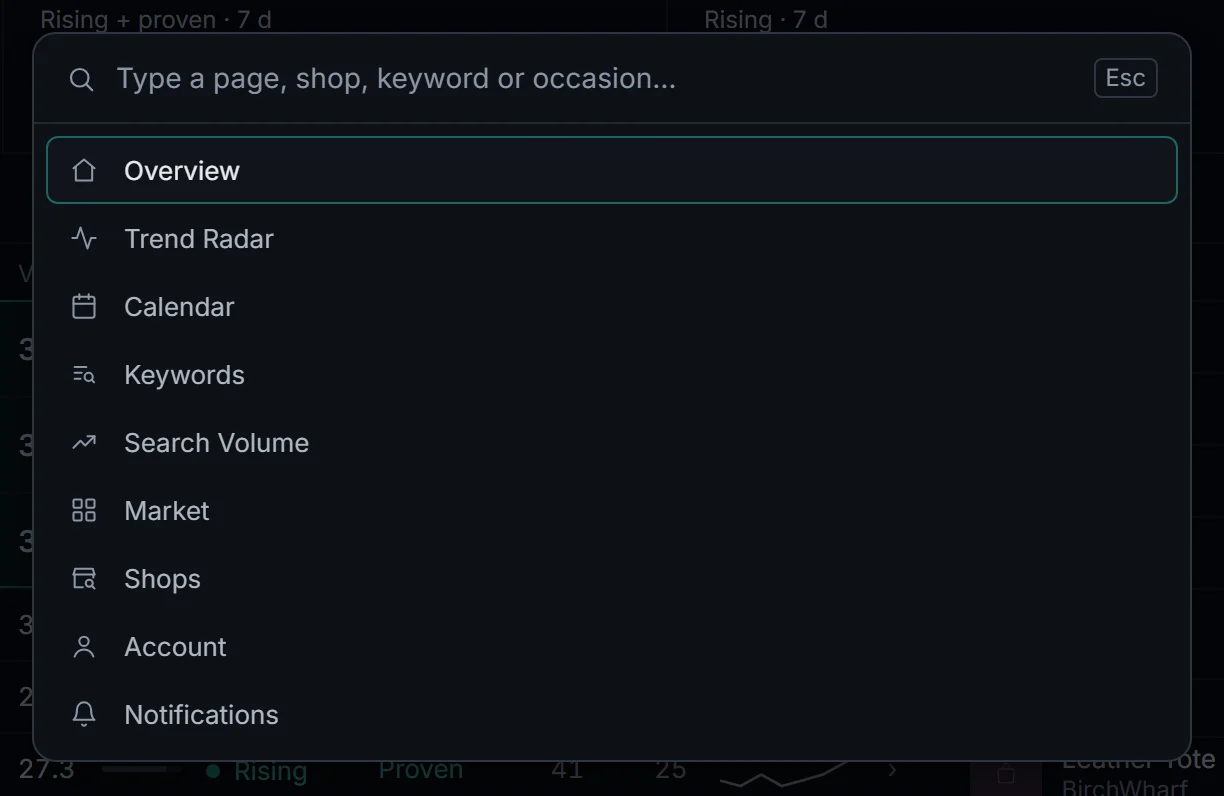
Press Ctrl K (⌘ K on a Mac) from any screen to jump to a page, a shop, a keyword or an occasion. Type a phrase and pick Search “…” in Market or Look up “…” in Keywords.
A 15-minute weekly routine#
- Overview: read the four key numbers and the top clusters. Note anything marked Post now.
- Calendar: check the next occasions and their post-by dates. Anything with a deadline in 14 days or less is marked in amber.
- Trend Radar: open a rising cluster and read why it was picked.
- Market: search the phrase. Compare views per day, favorites and age of the listings that already sell it.
- Shops: see who sells it and how large they are, before you design.
The Guide link in the top bar opens the page of this guide for the screen you are on.
How to read the numbers#
- — means not measured. RdPod never shows 0 for a value it has not measured. See Not measured.
- Est. or RdPod estimate marks a number RdPod works out rather than reads, such as estimated sales; ≈ marks an approximate value. See Estimates.
- The date chip in the Overview header tells you which day the numbers are from; other screens show the date next to their numbers. An amber chip means a measurement is paused and the numbers are older than usual. How RdPod data works explains both.
Brand and IP flags: you decide#
An amber Brand / IP flag means a title or phrase contains a term that may be a trademark, such as a well-known character name. RdPod keeps the data visible but never marks it Post now or Make this one; whether you use the term is your decision. The flag reads words, not images, and it is not legal advice: check the USPTO trademark database before you design.
Desktop only#
RdPod is built for a large screen and a mouse. On a phone it shows a page with a link to open on your computer. Use Chrome, Edge or Safari on a computer; the Chrome extension also runs on desktop Chrome.